Step 1:
Login into Mobiconnect with valid credentials and select your project.
https://www.mobiconnect.net/login
Step 2:
Navigate to the Alerts page by clicking on the Alerts from the menu.
Step 3 :
Click ‘New’ on the top right corner[/vc_column_text][divider line_type=”No Line” custom_height=”15px”][image_with_animation image_url=”578″ image_size=”large” animation_type=”entrance” animation=”None” animation_movement_type=”transform_y” hover_animation=”none” alignment=”” border_radius=”10px” box_shadow=”none” image_loading=”default” max_width=”100%” max_width_mobile=”default”][divider line_type=”No Line” custom_height=”15px”][vc_column_text css=”” text_direction=”default”]Step 4:
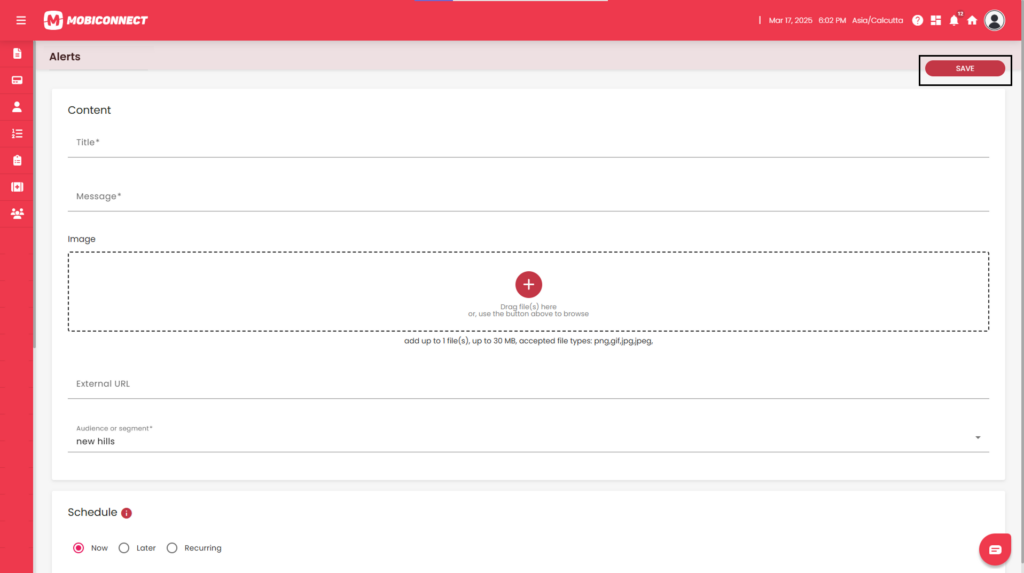
Fill out all the content details
Click on ‘Save’ to apply the changes[/vc_column_text][divider line_type=”No Line” custom_height=”15px”][image_with_animation image_url=”579″ image_size=”large” animation_type=”entrance” animation=”None” animation_movement_type=”transform_y” hover_animation=”none” alignment=”” border_radius=”10px” box_shadow=”none” image_loading=”default” max_width=”100%” max_width_mobile=”default”][divider line_type=”No Line” custom_height=”15px”][image_with_animation image_url=”575″ image_size=”large” animation_type=”entrance” animation=”None” animation_movement_type=”transform_y” hover_animation=”none” alignment=”” border_radius=”10px” box_shadow=”none” image_loading=”default” max_width=”100%” max_width_mobile=”default”][divider line_type=”No Line” custom_height=”15px”][vc_column_text css=”” text_direction=”default” el_class=”custom-info-box”]Info:
- Enter the title and body of the message.
- Upload an image.
- Add a link to external content.
- Select the target audience or segment.
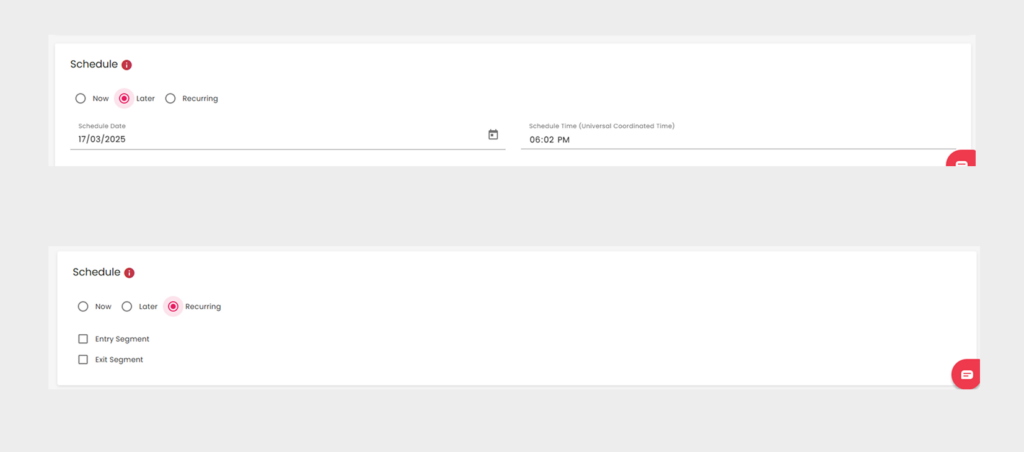
- Choose the delivery schedule:
Now: Sends the notification instantly.
Later: Set a specific date and time for delivery.
Recurring : Automatically send alert based on segment entry or exit triggers.