[vc_row type=”in_container” full_screen_row_position=”middle” column_margin=”default” column_direction=”default” column_direction_tablet=”default” column_direction_phone=”default” scene_position=”center” top_padding=”30px” constrain_group_1=”yes” bottom_padding=”30px” left_padding_desktop=”30px” right_padding_desktop=”120px” text_color=”dark” text_align=”left” row_border_radius=”none” row_border_radius_applies=”bg” overflow=”visible” overlay_strength=”0.3″ gradient_direction=”left_to_right” shape_divider_position=”bottom” bg_image_animation=”none” gradient_type=”default” shape_type=””][vc_column column_padding=”no-extra-padding” column_padding_tablet=”inherit” column_padding_phone=”inherit” column_padding_position=”all” column_element_direction_desktop=”default” column_element_spacing=”default” desktop_text_alignment=”default” tablet_text_alignment=”default” phone_text_alignment=”default” background_color_opacity=”1″ background_hover_color_opacity=”1″ column_backdrop_filter=”none” column_shadow=”none” column_border_radius=”none” column_link_target=”_self” column_position=”default” gradient_direction=”left_to_right” overlay_strength=”0.3″ width=”1/1″ tablet_width_inherit=”default” animation_type=”default” bg_image_animation=”none” border_type=”simple” column_border_width=”none” column_border_style=”solid”][vc_custom_heading text=”My Bookings” font_container=”tag:h2|font_size:34px|text_align:left|line_height:44px” use_theme_fonts=”yes” css=””][divider line_type=”Full Width Line” line_thickness=”1″ divider_color=”default” custom_height=”60px”][vc_custom_heading text=”Track and manage your assigned jobs, including start and end times.” font_container=”tag:h3|font_size:24px|text_align:left|line_height:31px” use_theme_fonts=”yes” css=””][vc_column_text css=”” text_direction=”default”]Keep track of your assigned jobs with a structured view of tasks at different stages, from new jobs to completion. Easily monitor job progress, update statuses, and manage your work efficiently.[/vc_column_text][vc_custom_heading text=”Job Status Tabs” font_container=”tag:h3|font_size:24px|text_align:left|line_height:31px” use_theme_fonts=”yes” css=””][divider line_type=”Full Width Line” line_thickness=”1″ divider_color=”default” custom_height=”30px”][vc_column_text css=”” text_direction=”default” el_class=”custom-line-height”]

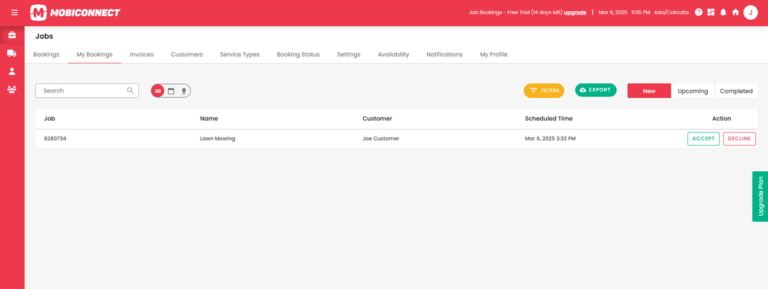
Divided into New, Upcoming, and Completed tabs, each tab facilitates the monitoring and managing of jobs based on their current status.

New Job:
Lists jobs that have been newly created and are awaiting action.
Actions: Contractors can accept or decline newly assigned jobs.

Upcoming Jobs:
Shows jobs that have been accepted and are scheduled to start and In progress jobs.

Not Started:
Contains jobs that are assigned but haven’t been started yet.

Start Job:
Displays a ‘Start’ button to begin the job. The system will ask for confirmation, and once started, you’ll get another prompt to optionally start a timer, which you can confirm if needed.

In Progress:
Contains jobs that are currently being worked on. You can change the status of the job once it is completed.

Complete Job: When the job status is changed to “Completed,” a confirmation message will appear, asking you to provide any required documents or details before finalising.

Completed Jobs:
Displays jobs that have been completed.

View:
Allows contractors to review the details of specific completed jobs.

Note:
If a job has not been started, accepted, or declined by the time the scheduled time has passed, its status will be updated to “Expired.

Transition Between Tabs:
When a job is created, it moves from the “New” tab to the “Upcoming” tab under “Not Started” while waiting for action.

Not Started to In Progress:
Jobs move to “In Progress” when the “Start” button is clicked and confirmed.

In Progress to Completed:
Jobs are moved to ‘Completed’ after the ‘Complete’ action is confirmed.[/vc_column_text][divider line_type=”No Line” custom_height=”15px”][image_with_animation image_url=”228″ image_size=”medium_large” animation_type=”entrance” animation=”None” animation_movement_type=”transform_y” hover_animation=”none” alignment=”” border_radius=”10px” box_shadow=”none” image_loading=”default” max_width=”100%” max_width_mobile=”default”][divider line_type=”No Line” custom_height=”15px”][vc_custom_heading text=”Other Features” font_container=”tag:h3|font_size:24px|text_align:left|line_height:31px” use_theme_fonts=”yes” css=””][divider line_type=”Full Width Line” line_thickness=”1″ divider_color=”default” custom_height=”30px”][vc_column_text css=”” el_class=”custom-line-height” text_direction=”default”]

Multi-view Options:
Users can switch between List, Map, and Calendar views to visualise job data.

Search and filters:
Quickly find job entries using name and customer search, along with advanced filtering options such as Customer, Service Type, Date Range (From Date, To Date)

Data export:
Export your job data in CSV format, selecting specific columns such as Job, Description, Customer, Contractor, Planned Start, and Status.

Pagination controls:
Supports navigating through large sets of jobs data.[/vc_column_text][/vc_column][/vc_row]